
You still have twelve competitor tabs open. Someone on the team checks them on Monday, forgets by Wednesday, and finds out about a rival's price cut from a prospect on a demo call.
Competitor monitoring should not depend on whoever remembered to look. If you already work with an AI agent in your editor, you can give it structured tools to watch rivals, read interpreted changes, and summarize what needs a human decision.
This guide walks through competitor monitoring with the Competiflow MCP server: create an account, connect your agent, add a competitor on the free trial, and run the five calls that cover setup through weekly triage.
What you'll learn
- Why field-level diffs beat bookmark folders and pixel monitors
- The five MCP tools that cover setup, review, evidence, digest, and triage
- How to create a Competiflow account and API key
- How to install the MCP server (with a Cursor example)
- How to add Linear as your first competitor and poll async discovery
- How to filter changes, pull evidence, and acknowledge what you have reviewed
- Three agent workflows PMMs and founders actually keep running
TL;DR: Sign up, create an API key, add the Competiflow MCP server to your agent client, then ask your agent to create a workspace and add a competitor homepage. Discovery runs in the background. After monitors check pages on cadence, your agent reads interpreted changes through list_changes and get_digest instead of you opening tabs.
Why give your agent competitor monitoring tools?
Give your agent competitor monitoring tools when manual bookmark checks stop scaling across pricing, changelog, docs, and homepage copy. The agent polls structured APIs on your schedule instead of you opening tabs.
Most teams start with bookmarks. That works until the list grows. Generic website monitors fill the gap, but they diff pixels or raw HTML. Cookie banners, timestamps, and layout shifts trigger alerts that have nothing to do with pricing or positioning.
Enterprise competitive intelligence platforms solve interpretation, but they often die in a dashboard nobody opens daily. You still end up triaging noise, just in a more expensive inbox.
Competiflow sits in the middle: structured competitor monitoring with field-level diffs, severity, a plain-language summary, why it matters, and evidence you can inspect. One successful page read costs one check, whether or not the page changed.
Your agent does not replace judgment on what to do about a move. It removes the manual polling. Ask for unreviewed pricing changes this week, and it calls the API instead of you opening five pricing pages.
Monitor competitors with AI (without a dashboard)
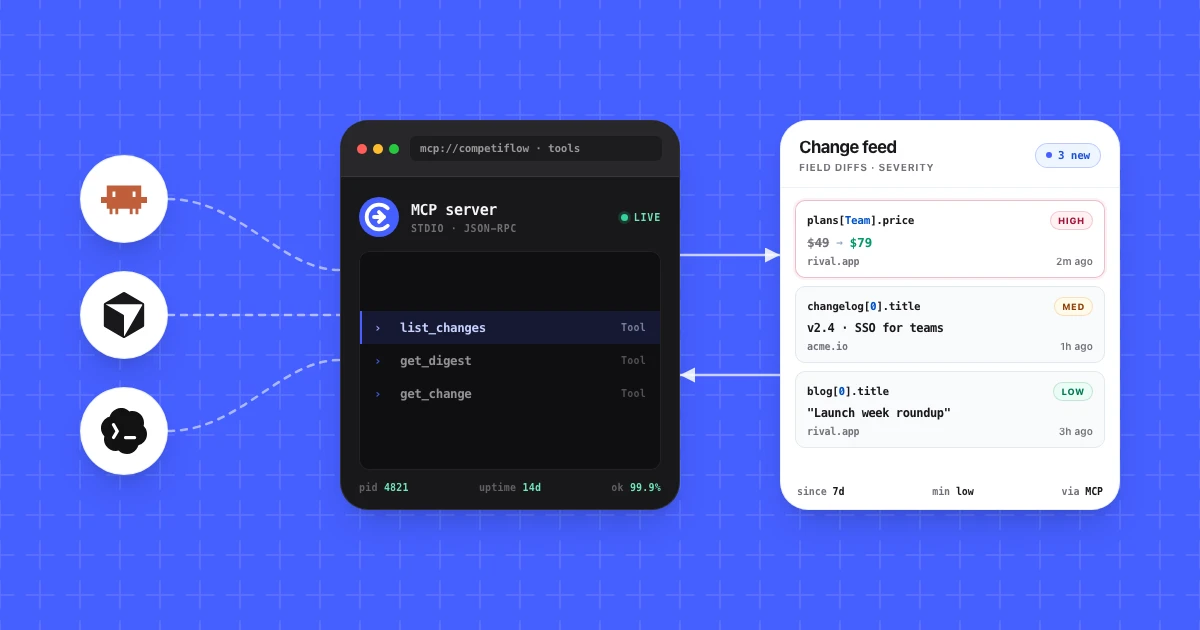
The point of wiring an AI agent to competitor monitoring is to stop opening a dashboard. You write a short prompt or scheduled task, the agent calls structured tools, and the answers appear in your editor or terminal alongside the code and copy you already work in.
This works because Competiflow returns interpreted, typed data. When the agent calls list_changes, it gets a JSON array with summaries, severities, and why-it-matters context. It does not get a screenshot to OCR or raw HTML to parse. That structure means the agent can filter, summarize, and triage without hallucinating the facts.
Three patterns teams keep running:
- Monday digest in the editor. One prompt on Monday morning: "get digest, summarize what needs review this week." The answer lands in the chat, not a browser tab.
- Pricing-only watch. Filter
list_changestomonitor_type: pricingandmin_severity: medium. Nothing else surfaces. When a rival moves a plan price, the agent tells you the old value, the new value, and the source URL. - Triage loop. The agent lists unreviewed changes, you confirm which to acknowledge, it calls
update_change. The inbox stays clean without you opening the web UI.
Each pattern requires the same setup below: an account, an API key, and the MCP server config pointed at your Cursor or Claude Desktop client.
The five MCP calls that cover the workflow
The Competiflow MCP server exposes 18 tools. You do not need all of them on day one. Five calls cover the loop we see teams keep:
| Step | Tool | What it does |
|---|---|---|
| 1 | add_competitor |
Point at a homepage; discovery finds pricing, blog, changelog, docs, and homepage monitors |
| 2 | list_changes |
Filter the change feed by time, severity, and monitor type |
| 3 | get_change |
Pull field diffs and optional capture evidence for one change |
| 4 | get_digest |
Synthesize the workspace: what needs review, who moved, coverage stats |
| 5 | update_change |
Mark a change acknowledged or dismissed so the inbox stays honest |
Everything else (create_workspace, get_competitor, refresh_workspace, list_monitors) supports setup and async polling. The MCP docs list the full tool table.
Async by design: add_competitor, check_monitor, and refresh_workspace queue work. They return acknowledgements, not final results. Poll get_competitor during discovery, then read outcomes with list_changes or get_digest.
The same flow is demoed on the homepage agent section. The steps below use live tool names and response shapes from the Competiflow API.
Create your account and API key
You need a Competiflow account and a sk_live_ API key before your agent can call the MCP server. The steps below take about two minutes.
- Sign up for Competiflow (free trial includes 100 checks, up to 3 competitors, and up to 15 monitors).
- Open Settings → API keys in the dashboard.
- Create a key. It is shown once, starts with
sk_live_, and is stored as a hash on our side. Copy it to a password manager.
If you lose a key, revoke it and create a new one. Full details are in Authentication.
Every MCP and API call sends:
Authorization: Bearer sk_live_your_key_here
Never commit that key to git, a public repo, or a screenshot.
Install the Competiflow MCP server
Install the server globally, or let npx fetch it on each run:
npx -y @competiflow/mcp-server
Set one environment variable:
| Variable | Description |
|---|---|
COMPETIFLOW_API_KEY |
Your sk_live_... key (required) |
The server calls https://api.competiflow.com/v1/.... Claude Desktop, Windsurf, and other MCP clients use the same package with their own config file path. See MCP server docs for client-specific paths.
Cursor
Add to .cursor/mcp.json in your project (or home directory):
{
  "mcpServers": {
    "competiflow": {
      "command": "npx",
      "args": ["-y", "@competiflow/mcp-server"],
      "env": {
        "COMPETIFLOW_API_KEY": "sk_live_your_key_here"
      }
    }
  }
}
Restart Cursor so the server loads. Do not commit .cursor/mcp.json if it contains a real key. Use an env reference or local-only config.
Add your first competitor with your agent
This walkthrough uses Linear as a public B2B SaaS example. On the free trial you can track up to 3 competitors; paid plans raise monitor and check limits without a competitor seat cap.
1. Create a workspace
Prompt: "Create a Competiflow workspace called 'Acme PM' for our product."
Your agent calls create_workspace:
{
  "workspace": {
    "id": 42,
    "name": "Acme PM",
    "slug": "acme-pm",
    "created_at": "2026-07-19T10:00:00.000Z"
  }
}
If you already have a workspace, list_workspaces is enough.
2. Add Linear
Prompt: "Add https://linear.app to workspace 42. Watch pricing and changelog."
Your agent calls add_competitor:
{
  "url": "https://linear.app",
  "monitor_types": ["pricing", "changelog"]
}
Response (202 Accepted):
{
  "status": "discovering",
  "url": "https://linear.app",
  "competitor": {
    "id": 8,
    "name": "Linear",
    "discovery_status": "running",
    "homepage_url": "https://linear.app"
  }
}
Discovery is asynchronous. Competiflow finds monitor-worthy URLs and seeds baseline checks. That usually takes a few minutes, not seconds.
3. Poll until discovery completes
Prompt: "Check whether discovery finished for competitor 8."
Your agent calls get_competitor until discovery_status is completed. Then list_monitors shows what it found (pricing, blog, changelog, docs, homepage depending on the site).
If you add a second competitor while discovery is still running on another URL, the API returns 409 discovery_in_progress with active_competitor_id. Poll that competitor until it finishes, then retry.
4. Queue fresh checks (optional)
Prompt: "Refresh all monitors in workspace 42."
refresh_workspace queues checks for active monitors. Like discovery, it acknowledges immediately. Read results through list_changes after checks finish.
Day one is often quiet. Right after setup, list_changes may return an empty array. Monitors are running; interpreted changes appear after Competiflow detects a real diff on a future check. The shape is still useful:
{
  "changes": [],
  "has_more": false,
  "meta": {
    "counts": { "unreviewed": 0, "acknowledged": 0, "dismissed": 0 },
    "max_unreviewed_severity": null
  }
}
More detail on competitors and discovery: Competitors API.
Review interpreted changes
Once monitors have baselines and at least one diff, your agent can triage the inbox. The JSON below uses the same response shapes as the live API (verified against MCP calls). Competitor names in the examples match our homepage demos.
Filter the feed
Prompt: "What competitor moves need review this week? Medium severity or higher."
Your agent calls list_changes with since=7d, min_severity=medium, and your workspace_id:
{
  "changes": [
    {
      "id": 901,
      "competitor": "Northwind",
      "monitor_type": "pricing",
      "severity": "high",
      "summary": "Team plan raised from $49 to $79/mo",
      "why_it_matters": "Update pricing battlecard and brief sales",
      "review_status": "unreviewed",
      "category": "pricing",
      "direction": "advanced",
      "delta": { "added": 0, "removed": 0, "modified": 1 },
      "created_at": "2026-07-14T12:30:00.000Z"
    }
  ],
  "has_more": false,
  "meta": {
    "counts": { "unreviewed": 3, "acknowledged": 12, "dismissed": 5 },
    "max_unreviewed_severity": "high"
  }
}
Use monitor_type=pricing when you only want pricing surfaces. Use review_status=unreviewed to skip what you already handled. See Changes API for filters and pagination.
Pull evidence for one change
Prompt: "Show me the before/after for change 901."
get_change with include=capture_markdown returns interpreted field diffs plus page context:
{
  "change": {
    "summary": "Team plan raised from $49 to $79/mo",
    "why_it_matters": "Northwind is 60% more expensive on its most popular plan",
    "field_diffs": [
      {
        "op": "modified",
        "path": "plans[team].price",
        "tier": "alertable",
        "change_type": "price_increase",
        "old": "$49/mo",
        "new": "$79/mo"
      }
    ],
    "why_it_matters": "Update pricing battlecard and brief sales",
    "source_url": "https://northwind.io/pricing"
  }
}
That is field-level evidence, not a pixel diff. You see which plan row moved and what the interpreter recommends, without squinting at a screenshot.
Acknowledge what you reviewed
Prompt: "Mark change 901 as acknowledged."
{
  "change": {
    "id": 901,
    "review_status": "acknowledged"
  }
}
Use dismissed for noise you never want to revisit. Prefer update_competitor or update_monitor with status: paused over delete when you want to keep history.
Three workflows that stick
The three patterns teams keep running are a Monday workspace digest, pricing-only triage before reviews, and a battlecard refresh loop after high-severity changes. Each maps to one or two MCP calls your agent can repeat on a schedule.
Monday workspace digest
Prompt: "Summarize my Competiflow workspace for the past 7 days."
get_digest returns synthesis, not a raw dump:
{
  "digest": {
    "period": "7d",
    "needs_review": { "count": 3, "max_severity": "high" },
    "this_week": {
      "bullets": [
        { "text": "Northwind raised Team pricing to $79/mo", "change_ids": [901] }
      ]
    },
    "whos_moving": [
      { "name": "Northwind", "change_count": 4, "max_severity": "high" }
    ],
    "coverage": { "competitors_count": 1, "monitors_healthy": 5, "monitors_failing": 0 }
  }
}
Paste the bullet list into Slack or email. One call replaces opening every competitor tab.
Pricing-only triage
Prompt: "List unreviewed high-severity pricing changes from the last 30 days."
Combine min_severity=high, monitor_type=pricing, and since=30d. Your agent returns a short list with summaries and why it matters. PMMs use this before pipeline reviews or board prep.
Battlecard refresh loop
When get_change flags a positioning or pricing move, ask your agent to draft a battlecard bullet from summary, why_it_matters, and field_diffs. After you edit the doc, call update_change so the inbox reflects what you handled.
Full digest fields: Digest API.
Agent monitoring vs checking tabs yourself
Agent plus MCP wins when you want interpreted changes on demand inside the editor you already use, without living in a CI dashboard or an email alert queue. Bookmarks and generic page monitors still fit when you track very few rivals or need arbitrary DOM diffs on any URL.
Agent-ready scraping MCPs (Firecrawl, general /monitor APIs) watch arbitrary pages. Competiflow focuses on CI surfaces with field diffs, severity, and why it matters instead of raw HTML noise.
| Bookmark folder | Generic page monitor | Agent + Competiflow MCP | |
|---|---|---|---|
| Setup | Free, manual | URL list, selector tuning | Homepage URL; discovery seeds monitors |
| What changes | Whatever you notice | Pixels or DOM noise | Normalized fields (price, plan, headline) |
| Interpretation | You write it | You write it | Summary, severity, why it matters |
| Delivery | You open tabs | Email alert flood | Agent queries on demand or digest |
| Best for | 2–3 rivals | "Tell me any change" | Teams who want signal without a CI dashboard habit |
Visualping and Distill are fine when you need arbitrary page diffs. Klue and Crayon fit teams with dedicated CI analysts and budget. Competiflow targets teams who want competitor monitoring tools that stay quiet until something worth reviewing appears, then meet you in the agent you already use.
Frequently Asked Questions
What is competitor monitoring?
Competitor monitoring is the practice of watching rival websites and product surfaces (pricing, changelogs, docs, homepages) for meaningful updates. Good monitoring filters noise and explains why a change might matter to your positioning, pricing, or sales motion. For the full category definition, see What is competitor monitoring?.
What is competitive intelligence?
Competitive intelligence is the broader discipline of turning competitor and market signals into decisions. Monitoring supplies the raw change feed; intelligence is what you do with it in product, marketing, and sales strategy.
How does competitor monitoring work in Competiflow?
You add a competitor homepage. Discovery finds monitor-worthy URLs and runs scheduled checks. Each check compares normalized fields to the last snapshot. When alertable fields change, Competiflow creates an interpreted change with severity, summary, and evidence. Your agent reads those changes through MCP or the REST API.
How do I set up and monitor competitors with an AI agent?
Create a Competiflow account and API key, install the MCP server, and configure your MCP client. Ask your agent to create_workspace, add_competitor with a homepage URL, poll get_competitor until discovery completes, then use list_changes and get_digest for ongoing review.
How do I monitor competitor pricing automatically?
Add the competitor's homepage (discovery usually finds the pricing page). Set cadence to daily on the trial, or faster on paid plans. Filter with list_changes using monitor_type=pricing and min_severity so your agent only surfaces pricing moves.
How do I reduce competitor alert noise?
Use severity filters (min_severity=medium or high), triage with update_change, and prefer field-level monitoring over pixel diffs. Competiflow ignores most layout churn by diffing structured fields, not raw HTML.
How do I track competitors automatically?
Add a rival homepage with add_competitor (up to 3 on the free trial; repeat on paid plans). Discovery seeds pricing, changelog, and other monitors on a daily cadence. Your agent calls list_changes or get_digest on a schedule you define instead of you revisiting bookmark folders.
How many competitors can I track on the trial?
The free trial tracks up to 3 competitors across up to 15 monitors (100 checks, daily cadence). Paid plans remove the competitor seat cap and raise check/monitor allotments. See Billing & checks.
Competitor monitoring gets easier when your agent can call structured tools instead of you polling bookmarks. Sign up, connect the MCP server, add Linear (or whichever rival matters most on your trial), and teach your agent the five-call loop: add, list, inspect, digest, triage.
When you are ready for a second competitor, upgrade your plan and ask your agent to run add_competitor again. Same tools, same inbox shape, less Monday-morning tab sprawl.